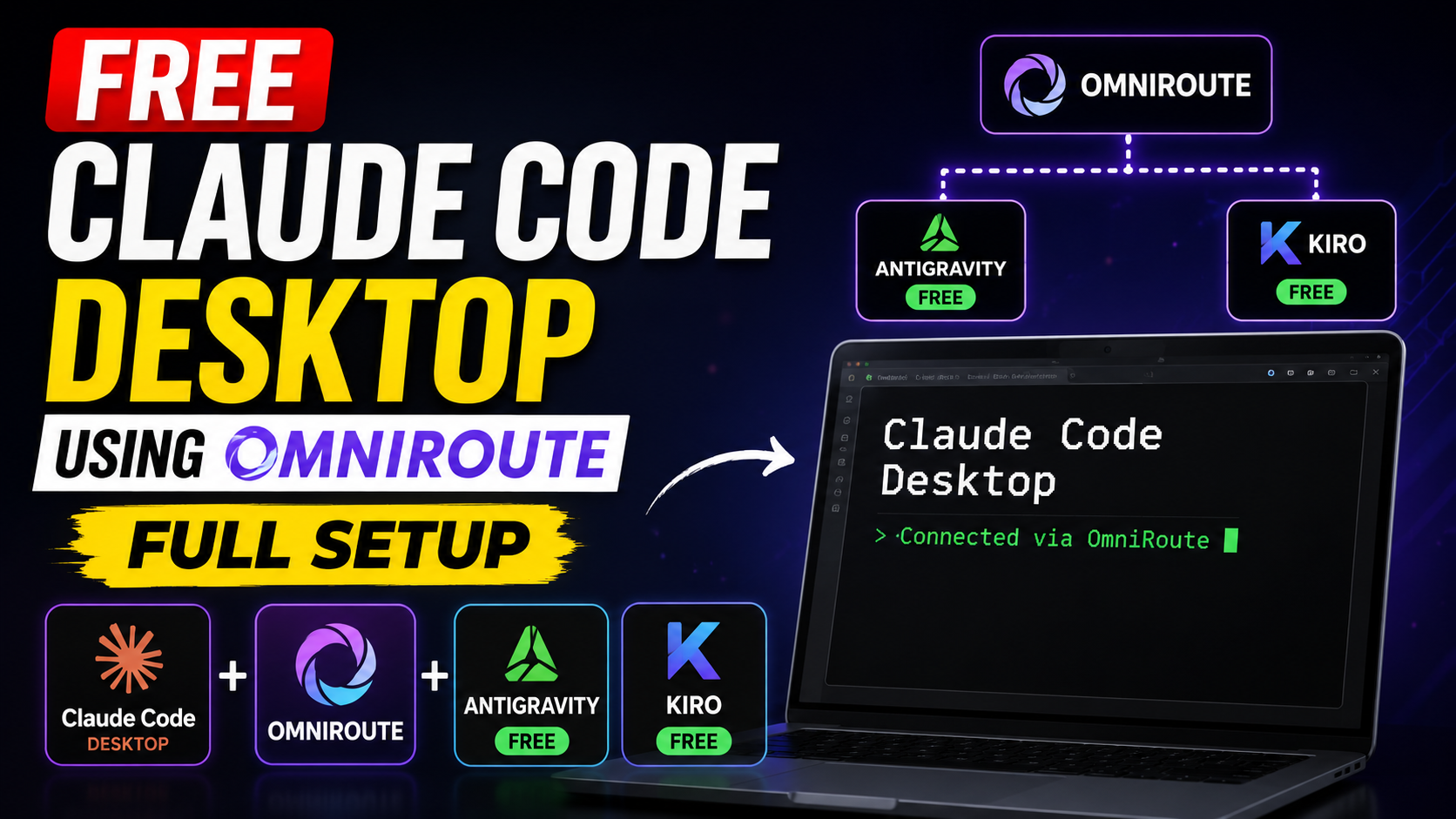
Want to use Claude Code Desktop with free AI providers like Antigravity and Kiro?
In this tutorial, I show you how to configure OmniRoute with Claude Code Desktop and route your coding requests through different AI providers.
The goal is to get more flexibility from Claude Code while taking advantage of available free AI providers.
🎥 Watch the Full Tutorial
In the video, I walk through the complete setup step by step, including installing and configuring OmniRoute, connecting it with Claude Code Desktop, adding providers, and testing the final configuration.
🔗 Useful Links
OmniRoute GitHub Repository
You can find the OmniRoute project and setup instructions here:
https://github.com/diegosouzapw/OmniRoute
Join the Telegram Channel
Get updates about AI tools, coding tutorials, free AI models, and other developer resources:
Telegram: https://t.me/geekybeginners
🛠️ What We Configure
In this tutorial, we configure the following setup:
Claude Code Desktop → OmniRoute → AI Provider
OmniRoute acts as the routing layer between Claude Code and the configured providers.
The setup allows you to experiment with multiple providers from the same Claude Code workflow instead of being limited to a single provider.
🤖 Providers Used
For this tutorial, we configure free providers such as:
- Antigravity
- Kiro
Availability, quotas, and free access can change over time, so always check the current terms and limits of each provider.
🧪 Testing the Configuration
After completing the setup, I wanted to test whether the configuration was actually working correctly.
For this, I used a simple Todo List web application as the coding task.
The prompt is intentionally straightforward because it lets us test multiple aspects of the AI coding workflow, including HTML, CSS, JavaScript, functionality, and project structure.
Test Prompt
Create a modern, clean, and fully functional Todo List web application using HTML, CSS, and vanilla JavaScript only.

### Requirements

- Use only HTML, CSS, and JavaScript
- Do not use React, Vue, Angular, Tailwind, Bootstrap, jQuery, or any external framework/library.
- Keep the project simple and beginner-friendly.
- Create separate files:
  - index.html
  - style.css
  - script.js

### Features

- Add a new todo
- Mark todos as completed
- Edit existing todos
- Delete todos
- Filter todos by:
  - All
  - Active
  - Completed
- Display the total number of remaining todos
- Add a Clear Completed button
- Save todos in localStorage so they remain after refreshing the page
- Press Enter to quickly add a todo
- Show a friendly empty-state message when there are no todos

### UI/UX

- Modern minimalist design
- Responsive layout for desktop, tablet, and mobile
- Center the todo application on the page
- Include a clear heading such as "My Todo List"
- Use a clean input field with an Add Todo button
- Completed todos should have a strikethrough effect
- Add subtle hover and transition effects
- Use accessible buttons and form elements
- Make the interface visually polished without making it unnecessarily complex

### JavaScript

Organize the JavaScript into clear functions such as:

- addTodo()
- deleteTodo()
- editTodo()
- toggleTodo()
- filterTodos()
- renderTodos()
- saveTodos()
- loadTodos()

Use an array of objects to manage todos, with properties such as:

{
  id: 1,
  text: "Learn JavaScript",
  completed: false
}

Make sure all functionality works correctly and there are no console errors.

Finally, provide the complete code for all three files and briefly explain how to run the project locally.
💡 Why I Used This Prompt
A Todo List is a great test project because it isn’t just a simple static webpage.
The AI needs to handle:
- UI design
- HTML structure
- CSS styling
- JavaScript logic
- CRUD operations
- Filtering
- State management
localStorage- Responsive design
- Multiple project files
This makes it a useful real-world test for checking whether the Claude Code + OmniRoute configuration is working properly.
🚀 Final Thoughts
With OmniRoute configured, you can experiment with different AI providers from your Claude Code workflow and potentially reduce your AI coding costs when free provider access is available.
If you’re following the tutorial, make sure to complete each configuration step carefully and test the setup with a project like the Todo List example above.
If you found this guide helpful, check out the video and subscribe to the channel for more AI coding tutorials, tools, and developer tips.
Useful Links
- OmniRoute: https://github.com/diegosouzapw/OmniRoute
- Previous Video: https://youtu.be/6lhf833RFaw
- Telegram: https://t.me/geekybeginners
Note: Provider availability, quotas, pricing, and access policies may change over time. Free access mentioned in this tutorial is subject to the respective provider’s current terms and limits.